How to View Your LinkedIn Profile as Others See It (2026)
To view your LinkedIn profile as others see it, click the Me icon, open View Profile, then select the More button (three dots) and choose View as. For the most accurate result, paste your profile URL into an incognito browser window. That shows the exact public version Google and logged-out visitors see.
You spent hours polishing your LinkedIn profile -- professional photo, keyword-rich headline, detailed experience.
But here is the problem: what you see is not what everyone else sees.
Your profile looks different depending on who is viewing it and how. A recruiter on LinkedIn sees a different version than a stranger on Google. A 1st-degree connection sees more than a 2nd-degree one. And someone who is not logged in? They might see a stripped-down skeleton of your profile.
The good news: you can preview exactly what each type of viewer sees, and you can control every detail through LinkedIn's privacy settings.
This guide covers three things:
- How to view your profile as others see it (desktop, mobile, and incognito methods)
- Privacy settings that affect what others can and cannot see (the part most guides skip)
- How recruiters specifically view your profile and what to optimize for
Stat check: LinkedIn data cited by career intelligence shows profiles with photos get 21 times more views and 36 times more messages than those without. What others see (or don't see) directly determines how often you get found.
How to view your LinkedIn profile as others see it (3 methods)
There are three ways to see your profile from someone else's perspective. Each one shows you something slightly different.
Method 1: Desktop -- "View as" public profile preview
This is the fastest way to see your public profile (what logged-out visitors and Google see).
Step-by-step:
- Click the Me icon at the top of your LinkedIn homepage
- Click View Profile
- On your profile page, look for "Edit public profile & URL" in the right sidebar
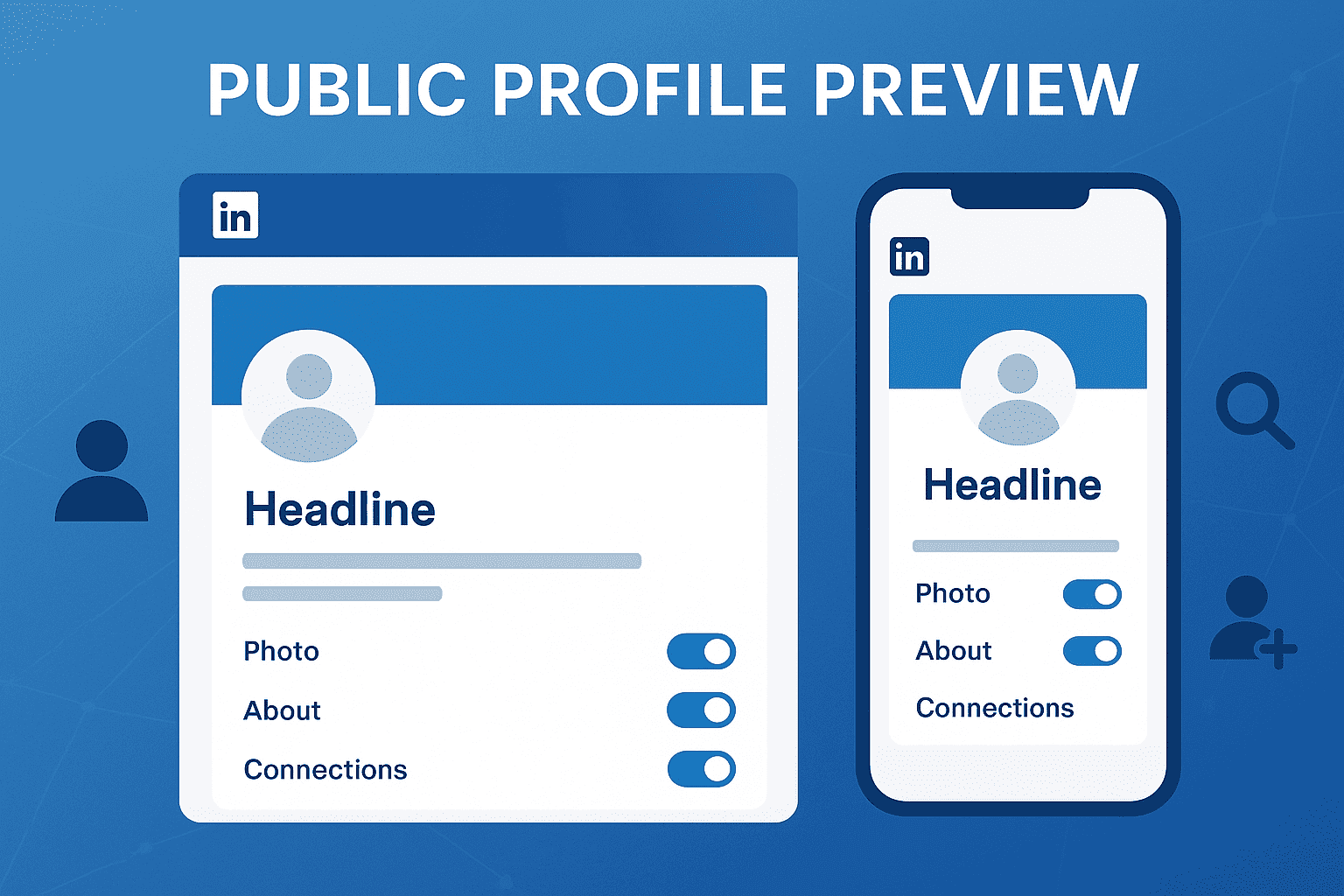
- Click it -- you will see a preview of your public profile on the left side
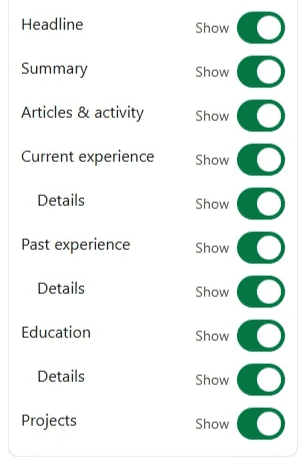
- On the right side, you will see toggles for every section you can show or hide
This page is your control center. Bookmark it. Every time you update your headline, About section, or experience, come back here and verify it looks right from the outside.
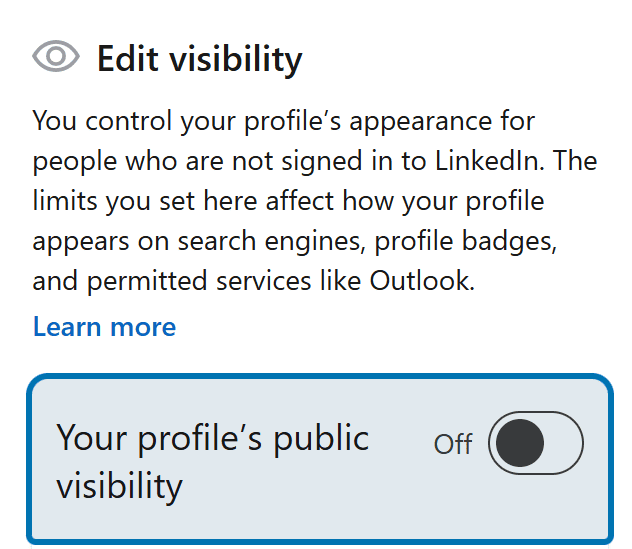
Pro tip: You can also click the More button (three dots) on your profile and select "View as" to see a quick preview.
Method 2: Mobile (iOS and Android)
The mobile path is buried deeper but works the same way.
Step-by-step:
- Open the LinkedIn app
- Tap your profile picture in the top left
- Tap View Profile
- Tap the three dots (More button) near your name
- Select "View as" to see your public profile
Alternative mobile path:
- Tap your profile picture > Settings & Privacy
- Go to Visibility
- Tap Edit your public profile
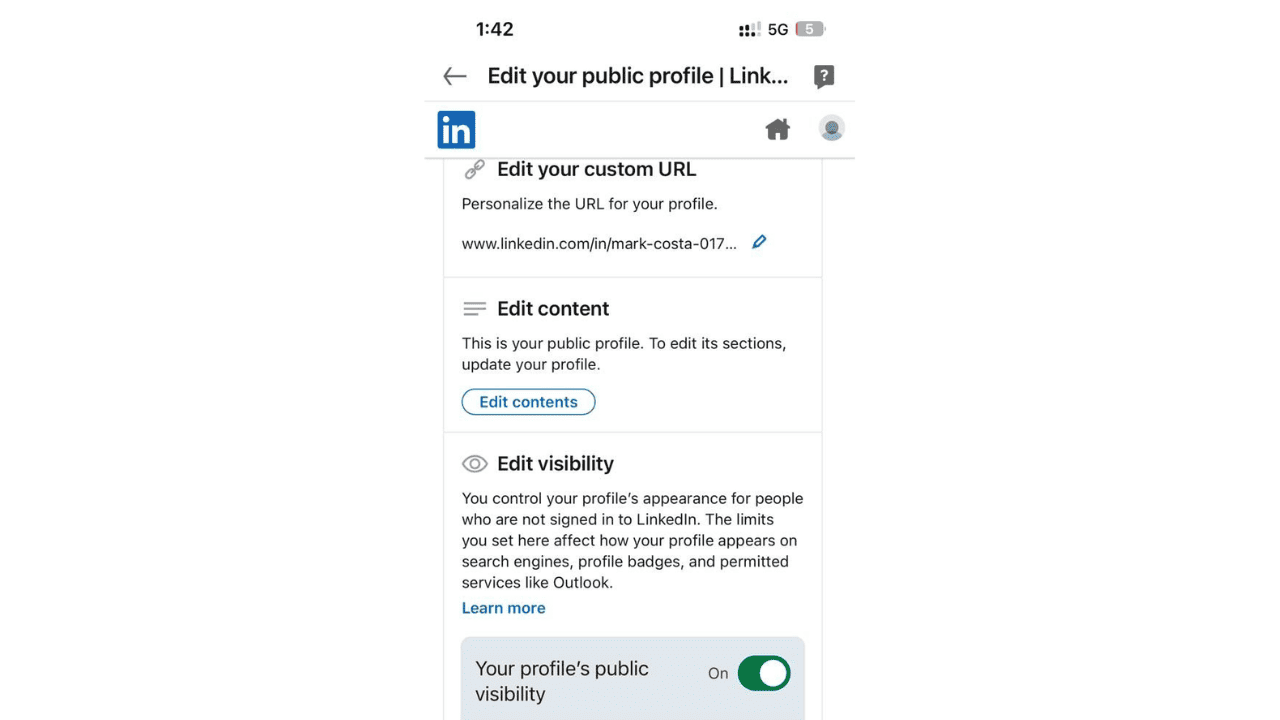
Warning: LinkedIn's mobile app sometimes does not save changes properly on slow connections. Always double-check on desktop after making mobile edits.
Method 3: Incognito browser (the real-world test)
The LinkedIn preview tools show you a sanitized version. If you want to see exactly what a random person finds when they Google your name, use this method:
Step-by-step:
- Copy your LinkedIn profile URL (e.g., linkedin.com/in/yourname)
- Open a private/incognito window in your browser (Ctrl+Shift+N on Chrome, Cmd+Shift+N on Mac)
- Paste the URL and hit Enter
- This is your true public profile -- what Google indexes, what non-LinkedIn users see
Why this matters: The LinkedIn preview tool sometimes shows slightly more than what the public actually sees. Incognito is the ground truth.
You can also send your URL to a colleague and ask them to open it while logged out.
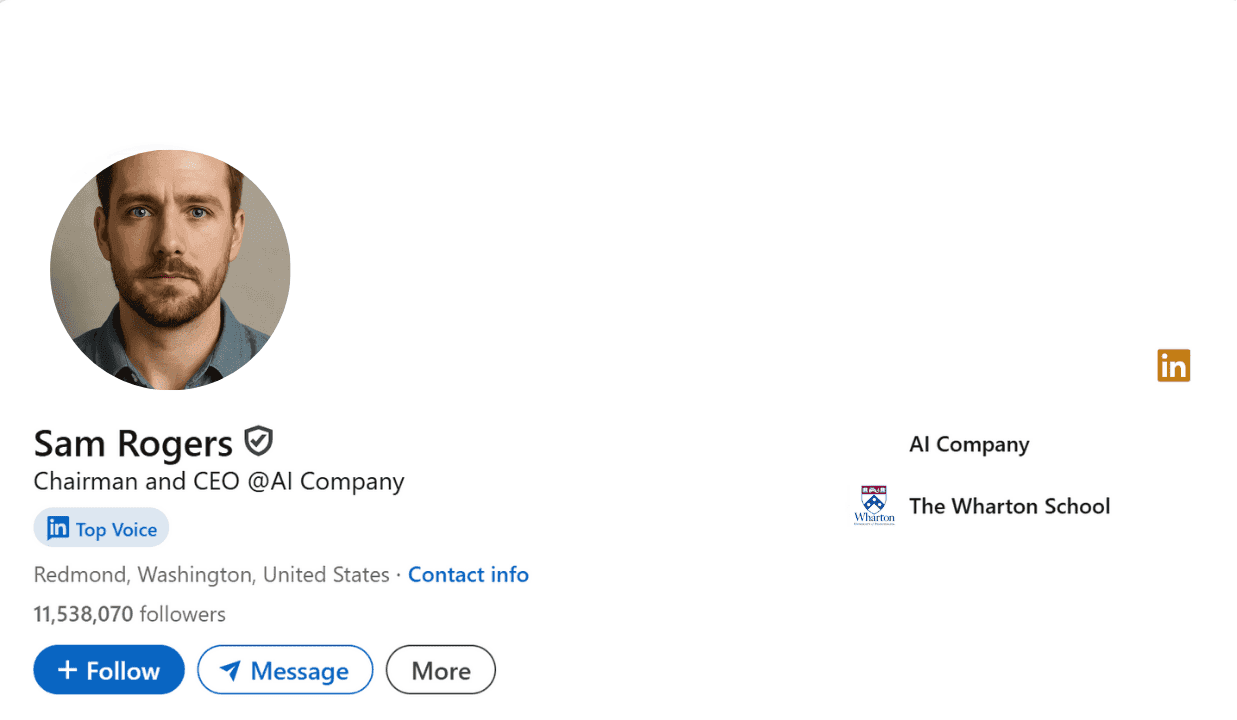
Privacy settings that affect your profile visibility
This is the section most guides skip -- but it is the most important one. LinkedIn has over a dozen privacy settings scattered across multiple menus that control who sees what on your profile.
Here is a complete breakdown.
Public profile visibility (master switch)
Where to find it: Settings & Privacy > Visibility > Edit your public profile
At the top of this page is a master toggle: "Your profile's public visibility."
- On = your profile appears in search engines and is visible to people not logged into LinkedIn
- Off = your profile is completely invisible outside of LinkedIn (no Google indexing, no public access)
If you are job hunting or building a personal brand, keep this On. If you want maximum privacy, turn it Off -- but know that recruiters searching on Google will not find you.
Section-by-section visibility toggles
When public visibility is On, you can choose exactly which sections appear publicly:
| Profile Section | Default | Recommendation |
|---|---|---|
| Profile photo | On | Keep On -- profiles with photos get 21x more views |
| Headline | On | Always On -- this is your first impression |
| About | On | Keep On -- critical for SEO and context |
| Experience | On | Keep On -- show at least top 2-3 roles |
| Education | On | Keep On for job seekers, optional for founders |
| Skills | Off | Turn On -- helps with keyword matching |
| Recommendations | Off | Turn On if you have strong ones |
| Projects | Off | Turn On if portfolio-relevant |
| Publications | Off | Turn On for thought leadership |
| Licenses & Certifications | Off | Turn On for regulated industries |
| Languages | Off | Optional |
| Volunteer Experience | Off | Optional -- can humanize your profile |
| Honors & Awards | Off | Turn On if impressive |
Profile viewing mode (who knows you visited them)
Where to find it: Settings & Privacy > Visibility > Profile viewing options
This controls what happens when you view someone else's profile:
| Mode | What They See | What You Lose |
|---|---|---|
| Your name and headline (default) | Full identity when you view their profile | Nothing |
| Private profile characteristics | They see job title and industry, not your name | Partial "Who Viewed" data |
| Private mode | They see "Anonymous LinkedIn Member" | You lose ALL "Who Viewed Your Profile" data |
Important trade-off: If you switch to Private mode to browse anonymously, you can no longer see who viewed your profile. LinkedIn enforces reciprocity -- you cannot have privacy in one direction and visibility in the other.
Connection visibility
Where to find it: Settings & Privacy > Visibility > Who can see your connections
Options:
- Your connections (default) -- anyone connected to you can see your full connection list
- Only you -- your connections list is hidden from everyone
When to hide connections: If you are in sales, recruiting, or a competitive industry where people poach contacts, hide your connections. There is no downside to hiding this.
Activity visibility
Where to find it: Settings & Privacy > Visibility > Manage active status
This controls whether people see when you are online (the green dot).
You can also control:
- Whether your posts and activity appear on your profile's Activity section
- Whether your likes and comments are visible to your network
- Whether followers can see your full activity feed
Email and phone visibility
Where to find it: Settings & Privacy > Visibility > Who can see your email address
Your email, phone number, and direct messaging options are never public to logged-out visitors. But within LinkedIn, you can control which connections see your contact info:
- 1st-degree connections only (recommended)
- 1st and 2nd-degree connections
- Everyone on LinkedIn
Best practice: Keep email visible only to 1st-degree connections. This prevents spam from people you have not accepted.
What others can vs. cannot see on your profile
Different viewers see dramatically different versions of your profile. Here is exactly what each group sees:
| Profile Element | Logged-out / Google | LinkedIn Member (non-connection) | 2nd-degree Connection | 1st-degree Connection |
|---|---|---|---|---|
| Name | Full name (if public) | Full name | Full name | Full name |
| Profile photo | Only if toggled on | Yes | Yes | Yes |
| Headline | Only if toggled on | Yes | Yes | Yes |
| About section | Only if toggled on | Yes | Yes | Yes |
| Experience | Only if toggled on | Yes | Yes | Yes |
| Education | Only if toggled on | Yes | Yes | Yes |
| Skills | Only if toggled on | Yes | Yes | Yes |
| Recommendations | Only if toggled on | Yes | Yes | Yes |
| Activity / Posts | No | Limited | Yes | Yes |
| Connections list | No | No (if hidden) | Depends on settings | Depends on settings |
| Contact info (email, phone) | Never | Never | Depends on settings | Depends on settings |
| "Who Viewed" notification | No | Depends on your viewing mode | Depends on your viewing mode | Depends on your viewing mode |
| Mutual connections | No | Yes | Yes | Yes |
| Full activity feed | No | No | Partial | Yes |
Key takeaway: Your public profile (what Google and logged-out users see) is the most restricted view. You have full control over it through the section toggles. Contact information is never exposed publicly.
How recruiters and hiring managers view your profile
Recruiters do not see the same profile you do. Understanding their perspective helps you optimize for what actually matters.
What recruiters see with LinkedIn Recruiter
Companies that pay for LinkedIn Recruiter get access to an enhanced profile view that includes:
- Your full profile regardless of connection status (they bypass 2nd/3rd-degree restrictions)
- InMail access even if you are not connected
- "Open to Work" signals if you have enabled them (only visible to recruiters, not your network)
- Skills assessments and badges prominently displayed
- Activity level -- how often you post, comment, and engage
- Profile completeness score and keyword match against their job search
What recruiters cannot see
Even with LinkedIn Recruiter, they cannot see:
- Your private messages
- Your saved jobs or job applications
- Your "Who Viewed" browsing history
- Your email or phone (unless you are a 1st-degree connection)
- Content you have hidden from your public profile
How to optimize for recruiter visibility
- Turn on "Open to Work" -- use the recruiter-only option so it is not visible to your current employer
- Add skills that match job titles -- Recruiter search filters heavily on skills
- Keep your headline keyword-rich -- recruiters search by title, skill, and location
- Complete every section -- Recruiter ranks complete profiles higher
- Stay active -- profiles that post and comment rank higher in Recruiter search results
- Add a location -- recruiters almost always filter by location
Stat check: According to LinkedIn data cited by All Star Career Services, profiles with at least 5 skills listed receive 17 times more profile views, and members with certifications get 5 times the profile views of those without. Skills and certs are direct levers for recruiter search ranking.
Choose what is visible on your public profile
Once you know how to preview and understand the privacy settings, the next question is: what should you actually show?
Turn your profile's public visibility On or Off
At the top of the settings page, there is a master switch: Public visibility On/Off.
- Off = your profile is invisible to search engines and logged-out users
- On = you control individual sections below
If you are under 18, this may be permanently locked Off.
Control name display, profile photo, and headline
LinkedIn lets you choose:
- Full name or just first name + last initial
- Profile photo visibility (public, members only, 1st-degree only)
- Headline visibility
If you are building credibility (job seeker, freelancer, founder), show full name + photo. Hiding these kills trust -- profiles with photos get 21x more profile views and 36x more messages.
What can never be made public
No matter what you toggle:
- Your email, phone, and direct messaging options are never publicly visible
- Blocked profiles stay blocked
- Certain workplace or region restrictions may override your personal settings
Optimize your public profile for jobs, clients, and networking
Visibility is step one. Optimization is step two.
Job seeker checklist
- Headline formula: Role/Title + Industry Keyword + Value (e.g., "Software Engineer | Python & AI | Building Scalable Systems")
- About section: short, impact-focused, front-load keywords
- Featured section: add links to GitHub, Medium, case studies, or portfolio
- Skills: pick top 10 that match target jobs and get endorsements
- Recommendations: request at least 2-3 from managers or senior colleagues
Freelancer and founder checklist
- Headline formula: Who you help + How you help + Proof (e.g., "Helping SaaS startups scale with SEO | $1M ARR growth for clients")
- Featured section: portfolio pieces, client logos, testimonials
- Experience: write case studies, not job duties -- focus on outcomes and metrics
Universal best practices
- Clear, professional photo (no sunglasses, no pixelation, no cropped group photos)
- About section = target keywords woven into a compelling narrative
- Highlight top 3 achievements with specific metrics
- Use your banner image as free real estate: tagline, logo, or call to action
Customize your URL and make your profile discoverable
Set a custom LinkedIn URL
Format: linkedin.com/in/yourname
- Avoid numbers if possible
- Keep it short, clean, and professional
- Do not add words like "guru" or "ninja"
- Use your real name or a recognizable professional alias
Make your profile show up on Google
Toggle "Allow search engines to show your profile" under your visibility settings.
Google usually picks up updates in 2-6 weeks. To speed it up:
- Share your LinkedIn profile link on your personal website
- Link to it from other social profiles (Twitter/X, GitHub, etc.)
- Post updates frequently -- active profiles get crawled faster
If your profile is not appearing in search results:
- Check if you accidentally toggled off search engine indexing
- If you recently changed your URL, Google needs to re-index the new one
- Avoid unnecessary redirects from old URLs
Create a public profile badge
LinkedIn provides a badge widget you can embed on:
- Your personal website (under "About" or "Contact")
- Your email signature
- Your resume or portfolio site
It is subtle social proof that drives profile visits.
View others' profiles without leaving a trace
Sometimes you need to research someone without them knowing -- a competitor, a potential hire, or a prospect.
Switch to Private Mode
Path: Settings & Privacy > Visibility > Profile viewing options > Private mode
When you enable this, the person you view sees "Anonymous LinkedIn Member" instead of your name.
The trade-off you need to know
When you go private, you also lose your own "Who Viewed Your Profile" insights. LinkedIn enforces reciprocity: if you want to browse anonymously, you give up seeing who views you.
Workaround: Switch to Private mode when you need to research someone, then switch back to your normal setting when you are done. LinkedIn only records the setting at the time of the visit.
Common issues and troubleshooting
"Edit public profile & URL" is missing
LinkedIn redesigns its interface frequently. If you cannot find this option:
- Desktop: Check the right sidebar on your profile page. It may also appear under the More dropdown button
- Mobile: Go to Settings & Privacy > Visibility > Edit your public profile
- Alternative: Go directly to linkedin.com/public-profile/settings
Changes are not showing in public view
LinkedIn caches profile pages. If your changes are not appearing:
- Wait 5-10 minutes
- Clear your browser cache
- Check in an incognito window (not your logged-in browser)
- If still not updating after 24 hours, try toggling public visibility Off and then On again
Profile is not visible publicly at all
Common causes:
- Age restriction: Under-18 accounts have public profiles disabled permanently
- Company policy: Some employers restrict employee profile visibility through LinkedIn admin settings
- Regional restrictions: Some countries have stricter default privacy settings
- Accidental toggle: You may have turned off public visibility without realizing it
"View as" shows different content than incognito
This is normal. LinkedIn's built-in "View as" preview shows an approximation. The incognito test shows the actual public view. When in doubt, trust the incognito version.
Profile photo is not showing publicly
Check two settings:
- Public profile settings: Make sure the photo toggle is On
- Photo visibility setting: Settings & Privacy > Visibility > Profile photo visibility -- make sure it is not set to "1st-degree connections only"
Pro tips to stand out in public view
Headline formulas that convert
Your headline is the single most important line on your profile. It appears in search results, connection requests, and post comments.
- Job seekers: Role + Skill + Industry keyword (e.g., "Product Manager | B2B SaaS | Growth & Retention")
- Freelancers: Who you help + How you help + Proof (e.g., "Helping DTC brands scale Meta Ads | 3x ROAS for 40+ clients")
- Founders: Company + Mission + Traction (e.g., "CEO at OutX | AI-powered LinkedIn social listening | 10K+ users")
Use the Featured section effectively
The Featured section is underused. Add:
- YouTube demos or video introductions
- Links to your personal website or portfolio
- Press mentions or media appearances
- Case studies or whitepapers
- Newsletter signup pages
Keyword placement for LinkedIn SEO
Google reads your headline, About, and Experience titles first. Place your target keywords in these three sections naturally. Do not keyword-stuff -- write for humans first, search engines second.
Want to see how your LinkedIn profile appears to specific people? OutX's LinkedIn Profile Viewer lets you view any LinkedIn profile anonymously, including checking how public profiles look without logging in. It's a quick way to audit your own visibility or research how others present themselves.
Summary and next steps
Here is the playbook in 30 seconds:
- Preview your public profile using desktop, mobile, or incognito
- Audit your privacy settings -- check every toggle in Settings & Privacy > Visibility
- Decide what to show -- at minimum: photo, headline, About, and top experiences
- Understand the trade-offs -- Private mode costs you "Who Viewed" data
- Optimize for recruiters -- enable "Open to Work," complete every section, add target keywords
- Customize your URL and enable search engine indexing
- Test regularly -- LinkedIn changes its UI frequently, so re-check your public profile every month
Your LinkedIn profile is a digital storefront. Most people treat it like a dusty resume. If you treat it like a landing page -- optimize for trust, control your privacy, and target the right audience -- you will win more jobs, more clients, and more opportunities.
FAQ
How do I view my LinkedIn profile as someone else sees it?
Go to your profile, click the More button (three dots), and select "View as" to see your public profile preview. For the most accurate view, copy your profile URL and open it in an incognito browser window.
Can I see how my LinkedIn profile looks to non-connections?
Yes. Use LinkedIn's public profile preview feature or open your profile URL in an incognito browser window. This shows exactly what non-connections and logged-out users see.
What do others see on my LinkedIn profile?
It depends on who is viewing. Logged-out visitors see only the sections you have toggled on in your public profile settings. LinkedIn members who are not connected to you see your full profile minus contact info. 1st-degree connections see everything, including your activity feed and shared content.
How do I make my LinkedIn profile visible on Google?
Go to Settings > Visibility > Edit your public profile. Toggle "Your profile's public visibility" to On, choose which sections to display, and make sure "Allow search engines to show your profile" is enabled.
Does viewing my own profile trigger a notification?
No. You can preview your own profile as many times as you want without generating any notifications or alerts.
Can recruiters see my profile if I have set it to private?
Yes. LinkedIn Recruiter is a paid tool that gives recruiters access to view profiles regardless of your connection status. However, they still cannot see your private messages, saved jobs, or contact info (unless you are connected).
How do I browse LinkedIn profiles anonymously?
Go to Settings & Privacy > Visibility > Profile viewing options and select Private mode. When enabled, people you view will see "Anonymous LinkedIn Member." The trade-off: you will no longer be able to see who viewed your own profile.
What is the difference between "View as" and opening my profile in incognito?
LinkedIn's "View as" feature shows an approximation of your public profile. Opening your URL in an incognito browser shows the actual public view that logged-out visitors see. When the two differ, the incognito version is more accurate.
Can my employer see my LinkedIn activity?
Your employer cannot see your LinkedIn messages, job applications, or profile browsing history. However, if your company uses LinkedIn Recruiter or has an admin LinkedIn page, they may be able to see if you have enabled "Open to Work." Use the recruiter-only setting to keep this hidden from your current employer.
How often should I check my public profile?
Check it once a month, or whenever you make a significant profile update. LinkedIn changes its interface and default settings periodically, so what was visible last month may have changed.