How to Build a LinkedIn Sales Signal Pipeline with OutX API
Most B2B deals start with a signal on LinkedIn that nobody catches.
A VP posts about switching CRMs. A director asks for tool recommendations. A founder shares frustration with their current vendor. These are buying intent signals, and they are the highest-converting leads your sales team will ever get.
The problem? They vanish in the feed within hours. No one on your team sees them. The prospect moves on. A competitor who was paying attention gets the deal.
This guide walks you through building an automated sales signal pipeline using the OutX API. By the end, you will have a Python script that watches LinkedIn for buying intent, scores leads by seniority and relevance, auto-likes high-value posts, and pushes alerts to Slack or your CRM.
What Are LinkedIn Sales Signals?
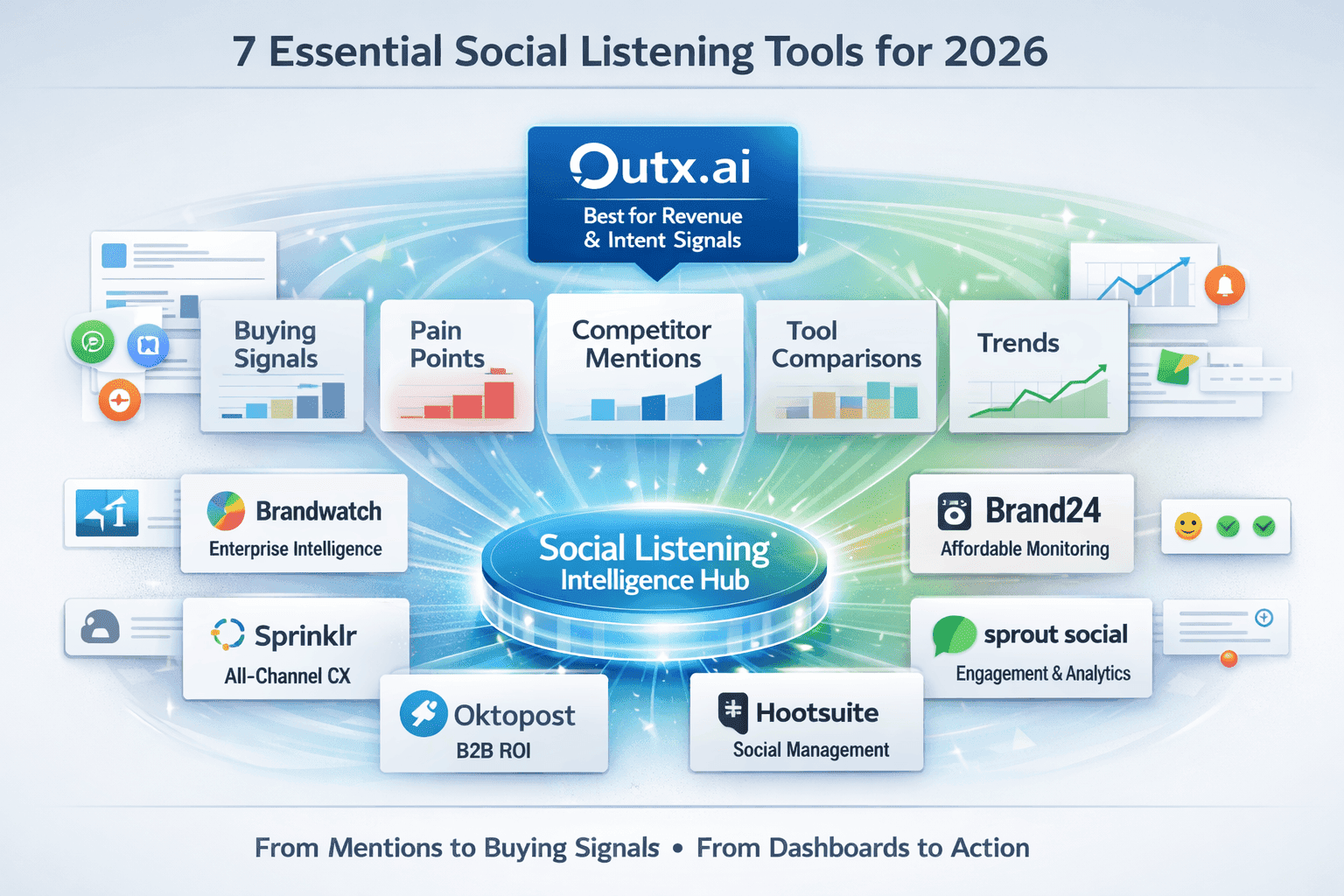
A sales signal is any public action on LinkedIn that indicates a person or company may be ready to buy. These signals fall into four categories:
Buying intent posts, Someone explicitly asks for recommendations, compares tools, or announces they are evaluating solutions. Examples: "Can anyone recommend a good project management tool?" or "We're switching from HubSpot, what else should we look at?"
Pain point sharing, A person describes a problem your product solves, even if they are not actively shopping. Examples: "Our outbound response rates have dropped to 2%," or "We spend 10 hours a week manually tracking LinkedIn mentions."
Tool comparison and review posts, Someone publicly evaluates alternatives in your category. These are late-stage signals. Examples: "Has anyone used Apollo vs ZoomInfo?" or "Comparing LinkedIn scraping tools for our SDR team."
Job changes and hiring posts, A new VP of Sales is likely to re-evaluate their tech stack. A company hiring SDRs is scaling outbound. Both are strong timing signals.
The research backs this up. According to LinkedIn's own B2B data, buyers who engage with vendor content before outreach are 3x more likely to respond. The challenge is finding these signals at scale, which is exactly what a signal pipeline solves.
Why Most Sales Teams Miss These Signals
Sales teams miss buying intent on LinkedIn for three reasons:
-
Manual scrolling does not scale. Even if your reps spend 30 minutes per day scrolling LinkedIn, they will only see a fraction of the posts in their network. They will never see posts from people outside their connections.
-
There is no system for capture. When a rep does spot a good signal, it lives in their head or a Slack message. There is no structured way to route it, score it, or track follow-up.
-
Timing matters more than anything. A buying intent post has a 24-48 hour window of relevance. After that, the person has either found a solution, gotten overwhelmed with DMs, or moved on. Manual processes cannot hit that window consistently.
A signal pipeline fixes all three problems. It monitors LinkedIn 24/7, categorizes what it finds, and delivers scored leads to the right person on your team, fast.
The Pipeline Architecture
Here is the five-step architecture we are building:
Step 1: Set up keyword watchlists for buying intent. You create watchlists on OutX with keywords that match the language your prospects use when they are ready to buy. This is not generic brand monitoring. These are high-intent phrases specific to your market.
Step 2: Configure labels to categorize signals. Labels let you tag incoming posts by signal type (buying intent, pain point, comparison, job change) so your team knows how to respond to each one.
Step 3: Poll the API for new posts. A scheduled script pulls new posts from your watchlists, filtered by seniority level, language, and recency.
Step 4: Score and prioritize leads. Not every signal is equal. A CXO comparing tools is worth more than an entry-level employee sharing an opinion. The script assigns a priority score based on seniority, engagement, and signal type.
Step 5: Engage and route. High-intent posts get an automatic like (to put your name on their radar). The highest-priority signals get pushed to Slack or your CRM for immediate follow-up.
Full Python Implementation
Below is the complete, runnable implementation. You will need your OutX API key, which you can get from mentions.outx.ai/api-doc.
Configuration and Setup
import requests
import json
import time
from datetime import datetime, timedelta

# ── Configuration ──────────────────────────────────────────────
API_KEY = "YOUR_OUTX_API_KEY"          # Get from mentions.outx.ai/api-doc
BASE_URL = "https://api.outx.ai"
SLACK_WEBHOOK_URL = "YOUR_SLACK_WEBHOOK_URL"  # Optional: for Slack alerts
USER_EMAIL = "you@yourcompany.com"     # Your OutX account email

HEADERS = {
    "Content-Type": "application/json",
    "x-api-key": API_KEY
}

# Signal categories with labels
SIGNAL_LABELS = [
    {"name": "buying-intent", "description": "Actively looking to purchase or switch tools"},
    {"name": "pain-point", "description": "Describing a problem our product solves"},
    {"name": "tool-comparison", "description": "Comparing or reviewing tools in our category"},
    {"name": "job-change", "description": "New role or hiring signal indicating stack evaluation"}
]
Step 1: Create Keyword Watchlists
The keywords you choose determine the quality of your pipeline. Use phrases your buyers actually say, not marketing jargon. Here is how to create a watchlist for a SaaS sales intelligence tool:
def create_signal_watchlist(name, keywords, labels=None):
    """Create a keyword watchlist for sales signal detection."""
    payload = {
        "name": name,
        "keywords": keywords,
        "fetchFreqInHours": 3,  # Check every 3 hours for fresh signals
    }

    if labels:
        payload["labels"] = labels

    response = requests.post(
        f"{BASE_URL}/api-keyword-watchlist",
        headers=HEADERS,
        json=payload
    )
    result = response.json()
    print(f"Created watchlist: {result.get('name')} (ID: {result.get('id')})")
    return result


# ── Buying intent keywords ─────────────────────────────────────
buying_intent_watchlist = create_signal_watchlist(
    name="Sales Signals - Buying Intent",
    keywords=[
        {
            "keyword": "looking for",
            "required_keywords": ["tool", "software", "platform", "solution"],
            "exclude_keywords": ["job", "hiring", "position"]
        },
        {
            "keyword": "recommend",
            "required_keywords": ["tool", "software", "platform"],
            "exclude_keywords": ["book", "podcast", "course"]
        },
        {
            "keyword": "switching from",
            "required_keywords": ["tool", "platform", "software", "CRM"],
            "exclude_keywords": ["career", "job"]
        },
        "anyone using",
        "what do you use for",
        "evaluating tools",
        "open to suggestions"
    ],
    labels=SIGNAL_LABELS
)

# ── Pain point keywords ────────────────────────────────────────
pain_point_watchlist = create_signal_watchlist(
    name="Sales Signals - Pain Points",
    keywords=[
        "struggling with outbound",
        "low response rates",
        {
            "keyword": "wasting time",
            "required_keywords": ["manual", "spreadsheet", "tracking"],
        },
        "our sales process is broken",
        "need to fix our pipeline",
        "spending too much time on"
    ],
    labels=SIGNAL_LABELS
)

# ── Tool comparison keywords ───────────────────────────────────
comparison_watchlist = create_signal_watchlist(
    name="Sales Signals - Comparisons",
    keywords=[
        "vs ZoomInfo",
        "Apollo alternative",
        "better than LinkedIn Sales Navigator",
        "compared to Lusha",
        {
            "keyword": "which is better",
            "required_keywords": ["sales", "leads", "prospecting", "outreach"],
        }
    ],
    labels=SIGNAL_LABELS
)

# Store watchlist IDs for polling
WATCHLIST_IDS = [
    buying_intent_watchlist["id"],
    pain_point_watchlist["id"],
    comparison_watchlist["id"]
]
Step 2: Poll for New Posts
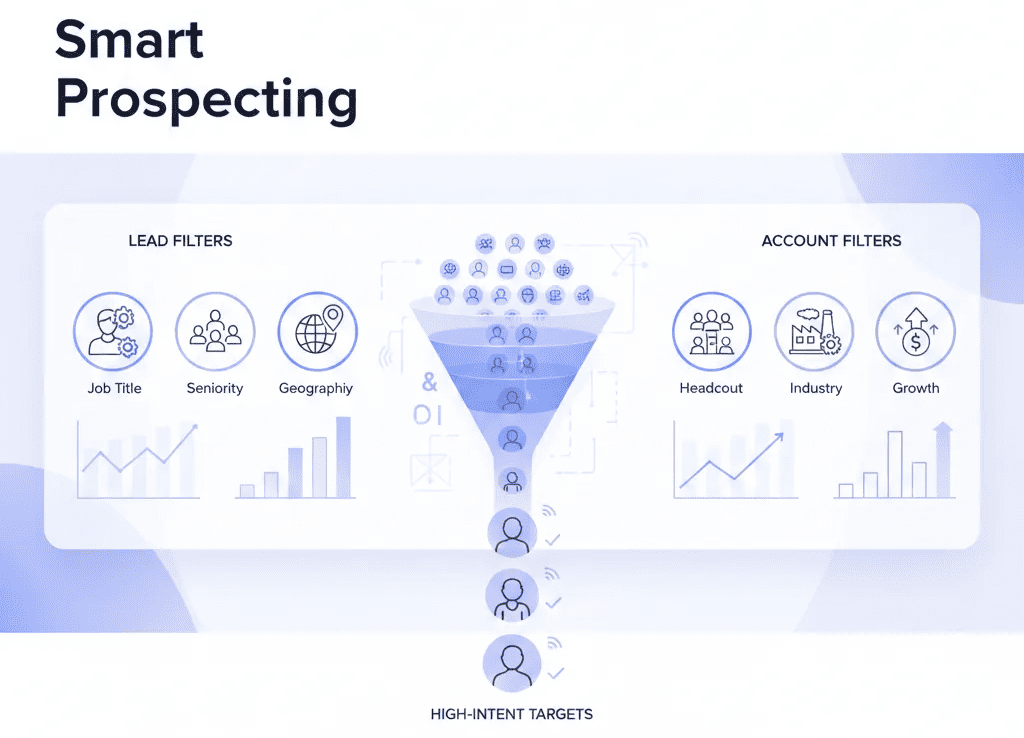
This function retrieves posts from your watchlists, filtered to only show decision-makers (VP, Director, CXO, Founder). It pulls posts from the last 24 hours so you are always working with fresh signals.
def fetch_new_signals(watchlist_ids, hours_back=24):
    """Fetch recent posts from signal watchlists, filtered by seniority."""
    start_date = (datetime.now() - timedelta(hours=hours_back)).strftime("%Y-%m-%d")
    all_posts = []

    for wl_id in watchlist_ids:
        params = {
            "watchlist_id": wl_id,
            "sort_by": "recent",
            "seniority_level": "VP,Director,CXO,Founder",
            "start_date": start_date,
            "lang": "en",
            "page": 1
        }

        response = requests.get(
            f"{BASE_URL}/api-posts",
            headers={"x-api-key": API_KEY},
            params=params
        )
        result = response.json()
        posts = result.get("data", [])
        total = result.get("count", 0)
        all_posts.extend(posts)

        # Paginate if there are more results
        page = 2
        while len(posts) == 20 and (page - 1) * 20 < total:
            params["page"] = page
            response = requests.get(
                f"{BASE_URL}/api-posts",
                headers={"x-api-key": API_KEY},
                params=params
            )
            posts = response.json().get("data", [])
            all_posts.extend(posts)
            page += 1

    print(f"Fetched {len(all_posts)} signals from {len(watchlist_ids)} watchlists")
    return all_posts
Step 3: Score and Prioritize Leads
Not every signal deserves the same response. This scoring function weighs seniority, engagement, relevance score, and signal type to produce a priority ranking.
SENIORITY_SCORES = {
    "CXO": 10,
    "C-Level": 10,
    "VP": 8,
    "Founder": 9,
    "Director": 7,
    "Manager": 5,
    "Senior": 4,
    "Entry": 2
}

LABEL_SCORES = {
    "buying-intent": 10,
    "tool-comparison": 8,
    "pain-point": 6,
    "job-change": 5
}


def score_signal(post):
    """Score a signal post based on seniority, engagement, and signal type."""
    score = 0

    # Seniority score (0-10)
    seniority = post.get("seniority_level", "")
    score += SENIORITY_SCORES.get(seniority, 2)

    # Engagement score (0-5): higher engagement = more visibility for your like/comment
    likes = post.get("likes_count", 0)
    comments = post.get("comments_count", 0)
    engagement = likes + comments
    if engagement > 100:
        score += 5
    elif engagement > 50:
        score += 4
    elif engagement > 20:
        score += 3
    elif engagement > 5:
        score += 2
    else:
        score += 1

    # Relevance score from OutX (1-10)
    relevance = post.get("relevance_score", 5)
    score += relevance

    # Label/signal type score
    tags = post.get("tags", [])
    best_label_score = 0
    for tag in tags:
        tag_name = tag if isinstance(tag, str) else tag.get("tag", "")
        best_label_score = max(best_label_score, LABEL_SCORES.get(tag_name, 0))
    score += best_label_score

    return score


def prioritize_signals(posts):
    """Score and sort signals by priority."""
    scored = []
    for post in posts:
        post["signal_score"] = score_signal(post)
        scored.append(post)

    scored.sort(key=lambda p: p["signal_score"], reverse=True)
    return scored
Step 4: Auto-Like High-Intent Posts
Liking a post puts your name and headline in front of the prospect. It is a zero-risk touch that establishes visibility before any outreach. This function auto-likes the top signals.
def auto_like_top_signals(posts, max_likes=10):
    """Auto-like the highest-scored signals to get on prospects' radar."""
    liked_count = 0

    for post in posts[:max_likes]:
        # Skip posts we have already liked
        liker_ids = post.get("liker_ids", [])
        if liker_ids:  # Already engaged
            continue

        payload = {
            "post_id": post["id"],
            "user_email": USER_EMAIL,
            "actor_type": "user"
        }

        response = requests.post(
            f"{BASE_URL}/api-like",
            headers=HEADERS,
            json=payload
        )

        if response.status_code == 200:
            result = response.json()
            if result.get("success"):
                liked_count += 1
                print(f"  Liked post by {post.get('author_name')} "
                      f"(score: {post.get('signal_score')})")
        elif response.status_code == 429:
            print("  Rate limit reached, stopping auto-likes")
            break

        time.sleep(2)  # Brief pause between likes

    print(f"Auto-liked {liked_count} posts")
    return liked_count
Step 5: Send Alerts to Slack
For the highest-priority signals, you want a human in the loop. This function sends a formatted alert to a Slack channel so your team can respond with a personalized comment or DM.
def send_to_slack(posts, min_score=20):
    """Send high-priority signals to Slack for manual follow-up."""
    high_priority = [p for p in posts if p.get("signal_score", 0) >= min_score]

    if not high_priority:
        print("No signals above threshold for Slack alert")
        return

    for post in high_priority[:5]:  # Cap at 5 alerts per run
        message = {
            "blocks": [
                {
                    "type": "header",
                    "text": {
                        "type": "plain_text",
                        "text": f"LinkedIn Signal (Score: {post['signal_score']})"
                    }
                },
                {
                    "type": "section",
                    "fields": [
                        {"type": "mrkdwn", "text": f"*Author:* {post.get('author_name', 'Unknown')}"},
                        {"type": "mrkdwn", "text": f"*Seniority:* {post.get('seniority_level', 'Unknown')}"},
                        {"type": "mrkdwn", "text": f"*Headline:* {post.get('author_headline', 'N/A')}"},
                        {"type": "mrkdwn", "text": f"*Engagement:* {post.get('likes_count', 0)} likes, {post.get('comments_count', 0)} comments"}
                    ]
                },
                {
                    "type": "section",
                    "text": {
                        "type": "mrkdwn",
                        "text": f"*Post:* {post.get('content', '')[:300]}..."
                    }
                },
                {
                    "type": "actions",
                    "elements": [
                        {
                            "type": "button",
                            "text": {"type": "plain_text", "text": "View on LinkedIn"},
                            "url": post.get("linkedin_post_url", "#")
                        }
                    ]
                }
            ]
        }

        requests.post(SLACK_WEBHOOK_URL, json=message)

    print(f"Sent {len(high_priority[:5])} high-priority signals to Slack")
Putting It All Together
This main function ties everything together. Run it on a cron job (every 3-6 hours) to keep your pipeline flowing.
def run_signal_pipeline():
    """Main pipeline: fetch, score, engage, and alert."""
    print(f"\n{'='*60}")
    print(f"Signal Pipeline Run - {datetime.now().strftime('%Y-%m-%d %H:%M')}")
    print(f"{'='*60}")

    # 1. Fetch new signals from the last 24 hours
    posts = fetch_new_signals(WATCHLIST_IDS, hours_back=24)

    if not posts:
        print("No new signals found")
        return

    # 2. Score and prioritize
    scored_posts = prioritize_signals(posts)

    # 3. Print summary
    print(f"\nTop 5 signals:")
    for i, post in enumerate(scored_posts[:5], 1):
        print(f"  {i}. [{post['signal_score']}] {post.get('author_name')} "
              f"({post.get('seniority_level', 'Unknown')}) - "
              f"{post.get('content', '')[:80]}...")

    # 4. Auto-like the top signals
    auto_like_top_signals(scored_posts, max_likes=10)

    # 5. Send high-priority signals to Slack
    if SLACK_WEBHOOK_URL != "YOUR_SLACK_WEBHOOK_URL":
        send_to_slack(scored_posts, min_score=20)

    print(f"\nPipeline complete. Processed {len(scored_posts)} signals.")


if __name__ == "__main__":
    run_signal_pipeline()
To run this on a schedule, set up a cron job:
# Run every 6 hours
0 */6 * * * cd /path/to/your/project && python3 signal_pipeline.py
Or use a task scheduler like crontab, a GitHub Action, or a cloud function (AWS Lambda, Google Cloud Functions) to run the script on a timer.
Example Keyword Sets by Industry
The keywords above are generic. Here are targeted keyword sets for three common verticals.
SaaS / B2B Software
saas_keywords = [
    "looking for a better CRM",
    "anyone tried",
    {
        "keyword": "switching from",
        "required_keywords": ["Salesforce", "HubSpot", "Pipedrive", "Zoho"],
    },
    "our tech stack needs an upgrade",
    "evaluating SaaS tools",
    "what's the best tool for",
    {
        "keyword": "recommendation",
        "required_keywords": ["software", "SaaS", "platform", "tool"],
        "exclude_keywords": ["book", "movie", "restaurant"]
    }
]
Recruiting and Staffing
recruiting_keywords = [
    {
        "keyword": "struggling to hire",
        "required_keywords": ["engineers", "developers", "talent", "candidates"],
    },
    "our ATS is terrible",
    "need a better recruiting tool",
    "hiring is broken",
    {
        "keyword": "looking for",
        "required_keywords": ["recruiter", "staffing", "talent acquisition"],
        "exclude_keywords": ["job", "position", "apply"]
    },
    "time to fill is too high",
    "sourcing candidates is painful"
]
Marketing Agencies
agency_keywords = [
    "need a marketing agency",
    "looking for a growth partner",
    {
        "keyword": "agency recommendation",
        "required_keywords": ["marketing", "SEO", "content", "paid ads"],
    },
    "firing our agency",
    "disappointed with our marketing results",
    "bringing marketing in-house",
    {
        "keyword": "who do you use for",
        "required_keywords": ["SEO", "PPC", "content marketing", "social media"],
    }
]
Adapt these to your market. The best keywords come from actual conversations with your customers. Ask your sales team: "What did the prospect say on the call that made you realize they were ready to buy?" Those phrases are your keywords.
Measuring ROI
A signal pipeline is only as good as the outcomes it drives. Track these metrics weekly:
Signal volume, How many signals does the pipeline catch per week? If the number is too low (under 10), broaden your keywords. If it is too high (over 200), tighten your filters or increase the seniority threshold.
Response rate, When your reps engage with signal-sourced leads (commenting on their post, sending a DM referencing the post), what is the response rate? Signal-based outreach typically sees 3-5x higher response rates than cold outreach because the timing and context are right.
Meetings booked, Track how many meetings come from signal-sourced leads versus other channels. Tag these in your CRM with a "linkedin-signal" source so you can measure the pipeline contribution over time.
Time to first touch, How quickly does your team respond after a signal is detected? The best-performing teams respond within 2-4 hours. If your average is over 24 hours, you need faster Slack routing or a dedicated signal responder.
Cost per meeting, Compare the cost of running this pipeline (OutX subscription + engineer time to maintain the script) against the cost per meeting from other channels like paid ads or SDR cold outreach. Signal pipelines typically deliver meetings at 60-80% lower cost.
FAQ
How is this different from LinkedIn Sales Navigator alerts?
Sales Navigator alerts are limited to job changes and company news. They do not track keyword-based buying intent across all of LinkedIn. OutX keyword watchlists monitor the full LinkedIn feed for specific phrases, giving you access to signals that Sales Navigator cannot detect. For a deeper comparison, see our LinkedIn prospecting guide.
Do I need the OutX Chrome extension for the API to work?
Yes. The OutX API works through the Chrome extension, which must be installed and active on at least one team member's browser. The extension is what enables LinkedIn data collection and engagement actions like likes. See the quickstart guide for setup instructions.
How many watchlists can I create?
The number of watchlists depends on your OutX plan. For a sales signal pipeline, you typically need 3-5 keyword watchlists (one per signal category). Check your plan limits at mentions.outx.ai.
Can I filter by geography or company size?
The Posts API supports filtering by language and seniority level. You can use the search_term parameter to further narrow results. For geographic filtering, filter by location_countries in the post response data within your scoring function.
Will auto-liking get my LinkedIn account flagged?
OutX processes likes asynchronously through the Chrome extension, mimicking natural behavior. The auto-like function in this guide caps at 10 likes per run with a 2-second delay between each, which stays well within safe limits. For more on safe automation practices, see our automation guide.
How do I send signals to my CRM instead of Slack?
Replace the send_to_slack function with an API call to your CRM. Most CRMs (Salesforce, HubSpot, Pipedrive) have REST APIs for creating leads or activities. Map the post author name, headline, LinkedIn URL, and signal score to your CRM fields. For more integration patterns, see the OutX use cases documentation.
What if I get rate limited?
The OutX API returns a 429 status code when you hit rate limits. The code in this guide already handles this in the auto_like_top_signals function. For the posts endpoint, add exponential backoff: wait 5 seconds after the first 429, then 10, then 20. Rate limits reset on a rolling window.
Next Steps
- Get your API key and run the watchlist creation script.
- Wait 3-6 hours for the first batch of signals to populate.
- Run the pipeline script manually to verify scoring and output.
- Set up a cron job or cloud function to run every 6 hours.
- Connect Slack (or your CRM) for real-time alerts.
- Review and tune your keywords weekly based on signal quality.
For more implementation patterns, explore the OutX API use cases and the quickstart guide.